


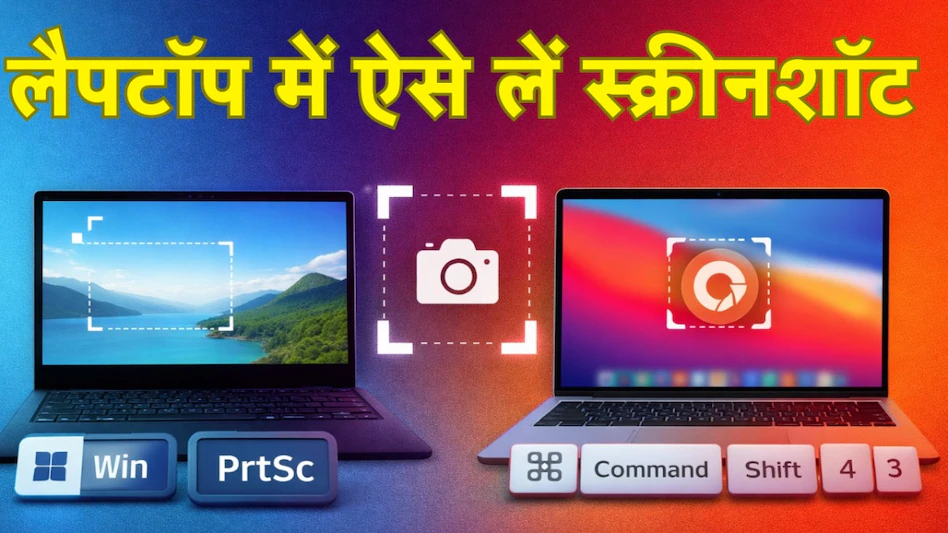
Taking screenshots is a routine task for most users, whether you’re saving a payment receipt or sharing an error message. However, many people still struggle to find the right way to capture their screens on laptops. Whether you’re using a Windows or Mac laptop, there are easy and effective ways to take screenshots. In this article, we’ll show you the simplest methods to capture full screens or specific areas on both Windows and Mac laptops.
How to Take Screenshots on Windows Laptops
Windows laptops offer several ways to capture screenshots. The most common and simplest method is using the Print Screen (PrtSc) button on your keyboard.
Full Screen Screenshot on Windows
Pressing the PrtSc button captures the entire screen, but the screenshot doesn’t automatically save. Instead, it is copied to the clipboard. To save it, open an application like Paint or Word, and paste it by pressing Ctrl + V.
However, if you want to take a screenshot and save it automatically, press the Windows key + PrtSc at the same time. This will dim the screen briefly, and your screenshot will be saved in the Pictures folder under the Screenshots subfolder.
Capturing a Specific Window
Sometimes, you only need to capture one window, not the entire screen. To do this, press Alt + PrtSc. This will capture only the window you’re working on, leaving the rest of the screen untouched.
Snipping a Selected Area
For users who need a more specific part of the screen, there’s a built-in snipping tool in Windows. To access it, press Windows + Shift + S. This will open a small toolbar allowing you to select a portion of your screen to capture. It’s a perfect option when you need just a section of the screen.
How to Take Screenshots on Mac Laptops
For Mac users, taking screenshots is even easier, thanks to keyboard shortcuts tailored for different types of screenshots.
Full Screen Screenshot on Mac
To capture the entire screen, press Command + Shift + 3 simultaneously. The screenshot will automatically save to your desktop.
Capturing a Specific Area on Mac
If you only want to capture a portion of your screen, press Command + Shift + 4. This will turn your cursor into a crosshair tool, allowing you to drag and select the area you want to capture. Once you release the mouse button, the screenshot will be saved to your desktop.
Using the Screenshot Menu on Mac
Mac also provides a screenshot menu for added flexibility. Press Command + Shift + 5 to open the screenshot menu, where you can select whether to capture the entire screen, a specific window, or a selected portion. You can also record your screen and decide where to save the file.
Which Screenshot Method Is Best?
The best method depends on your specific needs:
- For quick full-screen captures, the easiest method is Windows + PrtSc for Windows or Command + Shift + 3 for Mac.
- For capturing a specific portion of the screen, Windows + Shift + S or Command + Shift + 4 on Mac are ideal.
These methods provide the fastest way to take screenshots, ensuring you can easily capture important information in a matter of seconds.
Conclusion
Whether you are using Windows or Mac, taking screenshots is a straightforward process. Both operating systems offer multiple options, from capturing full screens to selecting specific areas. By using the right shortcuts, you can save time and ensure that important information is always within reach. Choose the method that works best for you, and enjoy seamless screenshot capturing on your laptop.